


With the use of deep machine learning and your smartphone’s camera, Google Lens can not only recognize objects in front of the camera lens, but also comprehend them and provide options for actions like scanning, translating, shopping, and more. With the use of deep machine learning and your smartphone’s camera, Google Lens can not only recognize objects in front of the camera lens, but also comprehend them and provide options for actions like scanning, translating, shopping, and more.
You may use Google Lens to point your phone at an object, like a certain flower, and then ask Google Assistant what it is. Along with the solution, you will also receive ideas depending on the object, such as nearby flower shops in the case of a flower.
Why to use Google Lens?
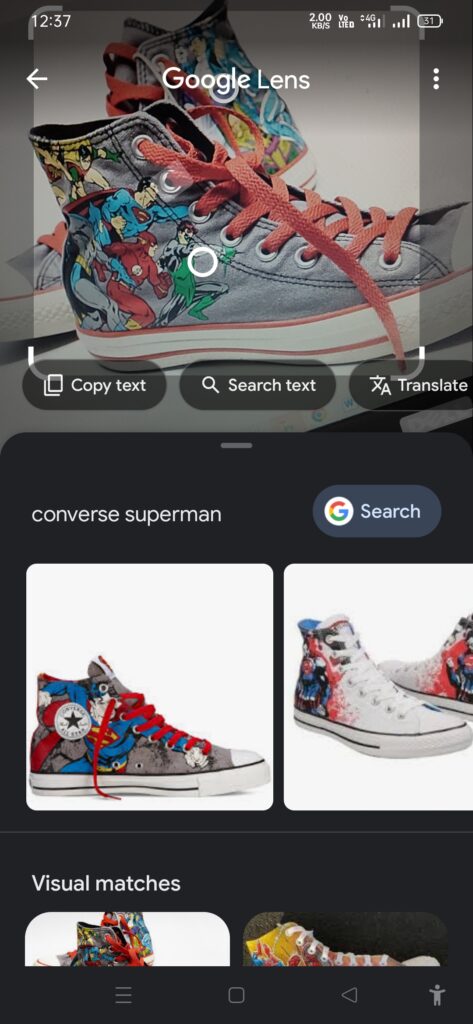
You should educate yourself on Google Lens’ capabilities before using it. The following are some uses for the Google Lens app.
Utilize the camera on your smartphone to recognize items, plants, and animals: You can use Lens and the camera on your smartphone to discover the name and year of a painting in a museum, the sort of houseplant your buddy has, and the breed of dog your dog is playing with in the park.
Discover new and old places: You can use Google Lens to discover new locations or learn more about nearby landmarks. For restaurants and stores, you may examine ratings and online reviews, as well as information about the business’s past.
Detect barcodes and QR codes: Google Lens can often replace the need for a separate QR scanner.
Make your purchasing routine simpler: Stop wasting time online by searching for a new outfit using only keywords. Use Google Lens to recognize each piece of an outfit you like and discover where to get it online. In addition, Google Lens will instantly detect any additional thing you can discover around the house.
translate and scan text: Additionally, Google Lens can help you preserve contact information from a business card, translate from a foreign language (into any Google Translate language), and download text from the real world to your smartphone.
How to use Google Lens?
Make sure Google Lens is downloaded on your phone from the Google Play store before you want to use it. And bear in mind that only Android phone owners may access it (unless you’re using Google Photos, for which there are instructions at the bottom).
Here’s how to use it to identify photos via Google Assistant on an Android phone after that:
1. Launch Google Lens, then swipe downward.
2. Click Open Camera to allow the app to use your camera.
3. By tapping the search button in the bottom-center of the screen, you can take a picture of whatever you want Google Lens to recognize.
In brief: How to identify an item or text using your camera?
By using one of the available methods to launch Lens on your phone, you can recognise an object, some text, or anything else that you haven’t already photographed. The square field with the label “Search with your camera” can be found at the top. The camera will open to fill your entire screen when you tap the icon in the field’s middle.
Four corner lines that represent Lens’s focus will be visible to you. You can use your fingers to enlarge or reduce the image by moving the camera till the desired image is inside of those lines. Tap the lightning bolt icon in the upper left of the screen if you don’t think you have enough light.
Tap “Search” at the bottom of the screen.